MN-WTHM WiFi Temperature Humidity Monitor | Industrial Multi-Protocol IoT Sensor
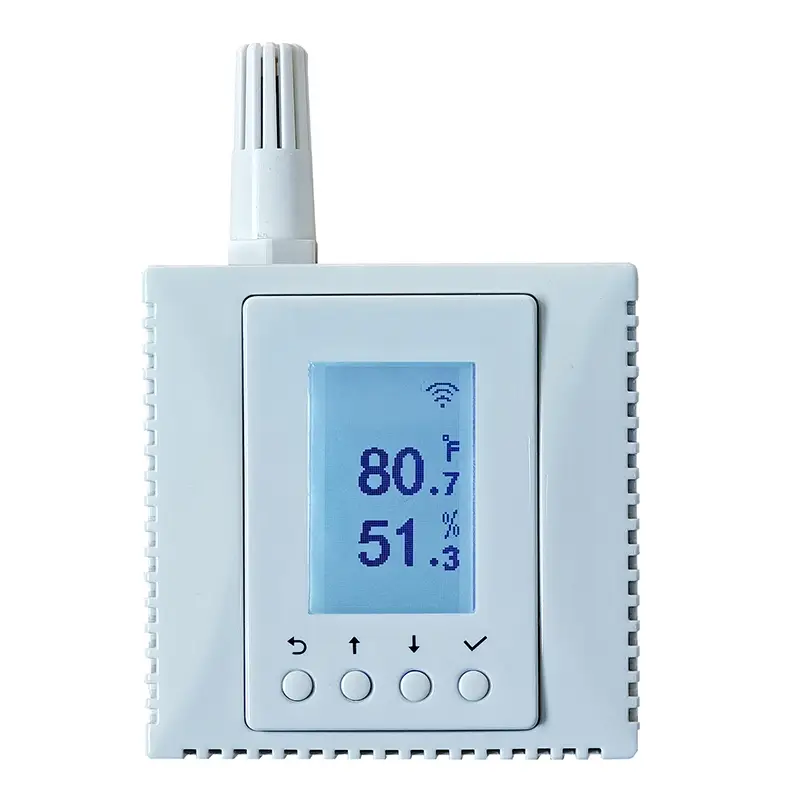
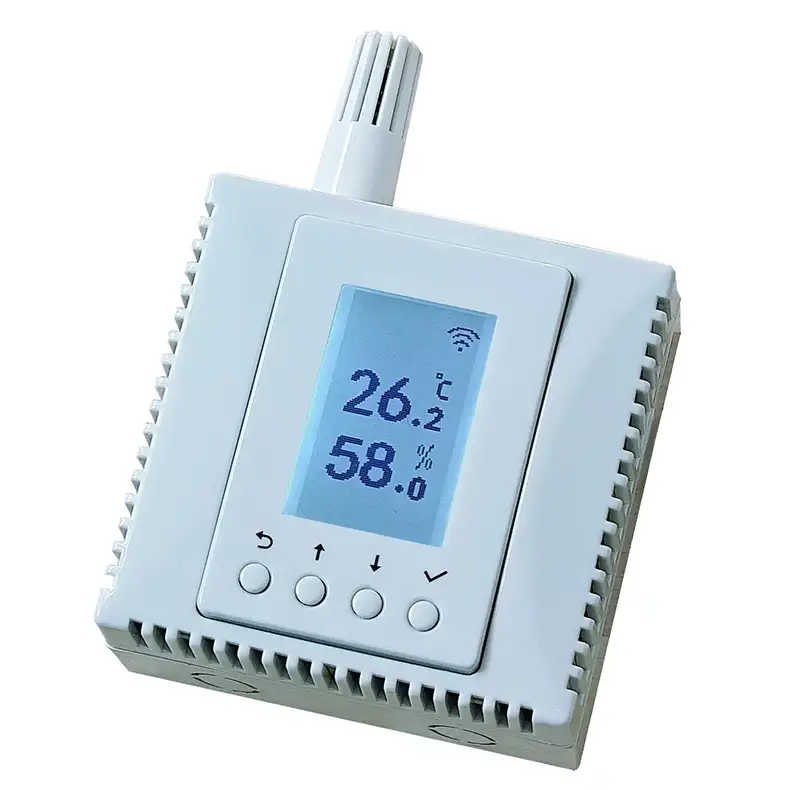
Buy from Amazon


Origin: China | HS Code: 8517.62.3990
Wi‑Fi Provisioning with the Monigear App
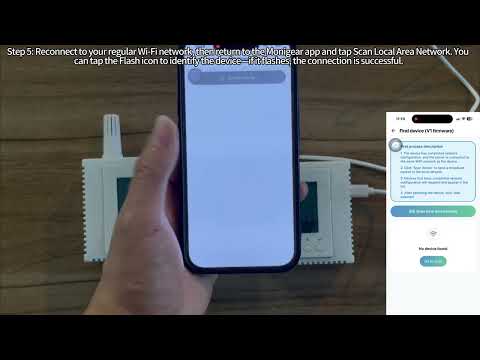
Step-by-step guide to provisioning your Monigear WiFi products via the Monigear App on iOS devices.
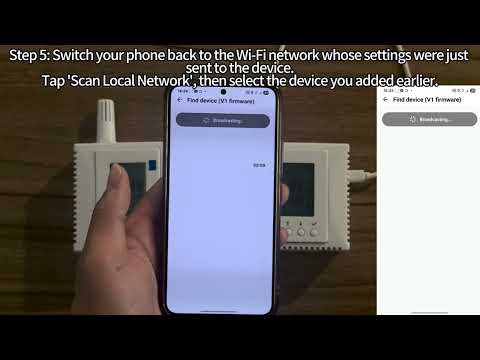
Step-by-step guide to provisioning your Monigear WiFi products via the Monigear App on Android devices.
Elevate your environment tracking with MONIGEAR's professional-grade temperature and humidity sensor. Designed for reliability and seamless integration, this sensor delivers real-time, accurate readings to ensure optimal indoor conditions.
Key Features
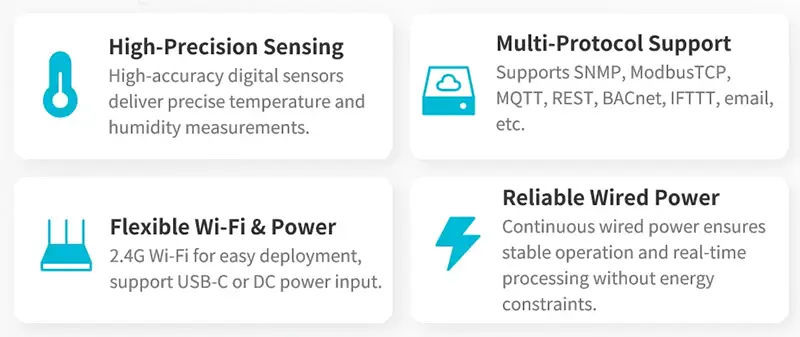
- Supports Multiple Industry-Standard Communication Protocols: Modbus TCP, SNMP, BACnet, and MQTT. Our system is compatible with all these protocols and can deliver data in multiple formats simultaneously. Comprehensive support for SNMP v1/v2/v3 and SNMP Trap v2c/v3 with high security level.
- A web service can be enabled to view sensor data directly through a browser. Support for the REST API protocol can also be enabled to return JSON data from the sensors. However, these two features are disabled by default for network security reasons, and can be enabled by configuration tool.
- Advanced SNMP Support: Full compatibility with SNMP v1/v2/v3 and SNMP Trap v2c/v3, featuring enterprise-level security for critical infrastructure monitoring.
- Can be integrated to AWS/Azure/Tuya IoT cloud directly with low cost. Can be directly integrated into Home Assistant.
- Proactive Alerts – Instant email notifications when thresholds are exceeded (fully customizable triggers). IFTTT Automation – Trigger smart actions (e.g., activate HVAC, log to Google Sheets, or Telegram alerts) via Webhook integration.
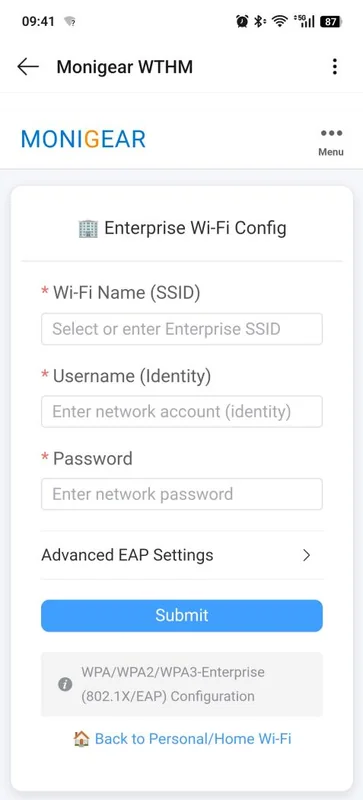
- Wifi network. Provides reliable Wi-Fi connectivity with native support for WPA-Enterprise and 802.1X authentication, enabling seamless integration into enterprise-grade security architectures.
- Supports standard USB Type-C 5V power supply. Supports DC power terminal supply, rated input voltage DC12V, range DC9~28V.(The DC power supply terminals are inside the box.)
- Easy to use: A graphical interface configuration tool supporting Windows, Linux, and macOS platforms with online remote upgrade capability for simplified product deployment and maintenance.
- Sleek, Durable Design: Compatible with standard 86×86 junction boxes, featuring a flame-retardant PC housing that meets stringent safety standards while complementing modern building aesthetics.
- Professional Certification: Certified through FCC/CE-RED/ROHS, meeting the high standards and strict requirements of the market.
- Your Data, Your Control: MONIGEAR's sensor puts security first—whether cloud-connected or fully self-contained.
Typical Scenarios
For detailed information about the capabilities across all our Network Sensors, please visit our common features page.
Technical Specifications
| Measurement Range | Temperature: -30°C~85°C (-22°F~185°F); Humidity: 0-100% RH |
|---|---|
| Measurement Accuracy | Temperature: ±0.3°C @0-65°C (±0.54°F @32-149°F); Humidity: ±3%@10-90% RH |
| Communication Protocol | Supports multiple TCP/IP application layer protocols: MQTT/MQTTS, ModbusTCP, SNMP, BACnet, REST API, email etc. |
| Device Power Supply | Supports standard USB Type-C 5V power supply. Supports DC power terminal supply, rated input voltage DC12V, range DC9~28V.(The DC power supply terminals are inside the box.) |
| Power Consumption | 0.5W |
| WLAN Wireless Communication | Supports IEEE 802.11 b/g/n standard 2.4 GHz band Wi-Fi network. |
| Operating Storage Temperature | -30~+85℃ (-22°F~185°F) |
| Operating Storage Humidity | 5~95% RH, non-condensing |
| Product Dimensions | 86*86*48 mm |
Frequently Asked Questions
How can I assign a fixed IP address to the MN-WTHM?
Unlike Ethernet devices, WiFi devices must pass the access point's authentication before connecting to the network, so they typically rely on DHCP (either from the AP or an upstream DHCP server) to obtain IP addresses. However, in industrial multi-device deployments where IP-address-based protocols such as SNMP or Modbus TCP are used, having fixed IP addresses for each device is essential. There are two common solutions:
1. MAC address binding: You can view the device's MAC address on the LCD screen. On a managed AP or router, bind this MAC address to a specific fixed IP address so the device always receives the same IP via DHCP reservation.
2. Enterprise WPA authentication (802.1X/EAP via RADIUS): MN-WTHM supports enterprise-grade WPA/WPA2/WPA3-Enterprise authentication. When connecting to an enterprise network via RADIUS, the RADIUS server can assign a dedicated username/password and a corresponding fixed IP address to the device.
What is the best way to provision the WiFi connection?
Early-generation Monigear WiFi devices used the phone's system camera to scan the device's provisioning QR code, which opened a browser page where you entered the WiFi SSID and password. However, this method does not work reliably across all phone brands — some devices may take a long time to open the browser page after scanning, or may not open it at all.
We therefore strongly recommend using the built-in QR scanner within the Monigear App for WiFi provisioning. The App also automatically remembers previously used WiFi SSIDs and passwords, so you do not need to re-enter them for subsequent devices — this significantly speeds up batch configuration.
Starting from the August 2026 firmware release, WiFi devices offer two provisioning modes at startup: No App and Use App. iOS users should select Use App mode when provisioning with the Monigear App for the best experience; Android users can use either mode without limitation. Users who prefer the system camera scanning method can continue using No App mode, which works identically to the previous provisioning flow.
Note for iOS users: iOS forces a WLAN availability check during WiFi provisioning. When provisioning older-firmware devices or using No App mode via the Monigear App, iOS may pop up the system browser page automatically. Although you can close this popup and return to the App to complete provisioning, it is not a user-friendly experience. For the smoothest experience on iOS, we recommend using Use App mode with the latest firmware, or using the Android version of the Monigear App.
How do I provision multiple devices?
If you have multiple WiFi devices to configure, we recommend provisioning them one at a time in sequence to avoid confusion. If multiple devices enter provisioning mode simultaneously, scanning the QR code will randomly connect to only one of them — this is because all devices in provisioning mode broadcast the same AP SSID, so the phone will connect to whichever device AP it detects first. Complete one device fully before starting the next to ensure each device is provisioned correctly.
Why does the temperature reading or unit in the App differ from what is shown on the device?
The temperature unit setting in the Monigear App is independent of the temperature unit setting on the device itself. For example, if the device is set to Fahrenheit (°F) but the App is set to Celsius (°C), the App automatically converts the reading before displaying it, so the displayed values may differ numerically while representing the same actual temperature. If you wish to change the device's temperature unit, please use the PC-based Monigear Network Device Configuration Tool (this option will be available in the App in a future update).
Can the MN-WTHM be used in a home environment?
For many years our devices have primarily served enterprise and industrial customers. However, with the launch of our WiFi series this year, the MN-WTHM is also well suited for home use. Recognizing that PC-based configuration tools can be overly technical for home users, we developed the Monigear App to let users configure and monitor devices directly from their phones. The current App V1.0 allows viewing sensor data on your local network; future updates will introduce AWS-cloud-based remote monitoring and management, making it even more convenient for home users.